
How to Rebuild an Existing WordPress Site with AI
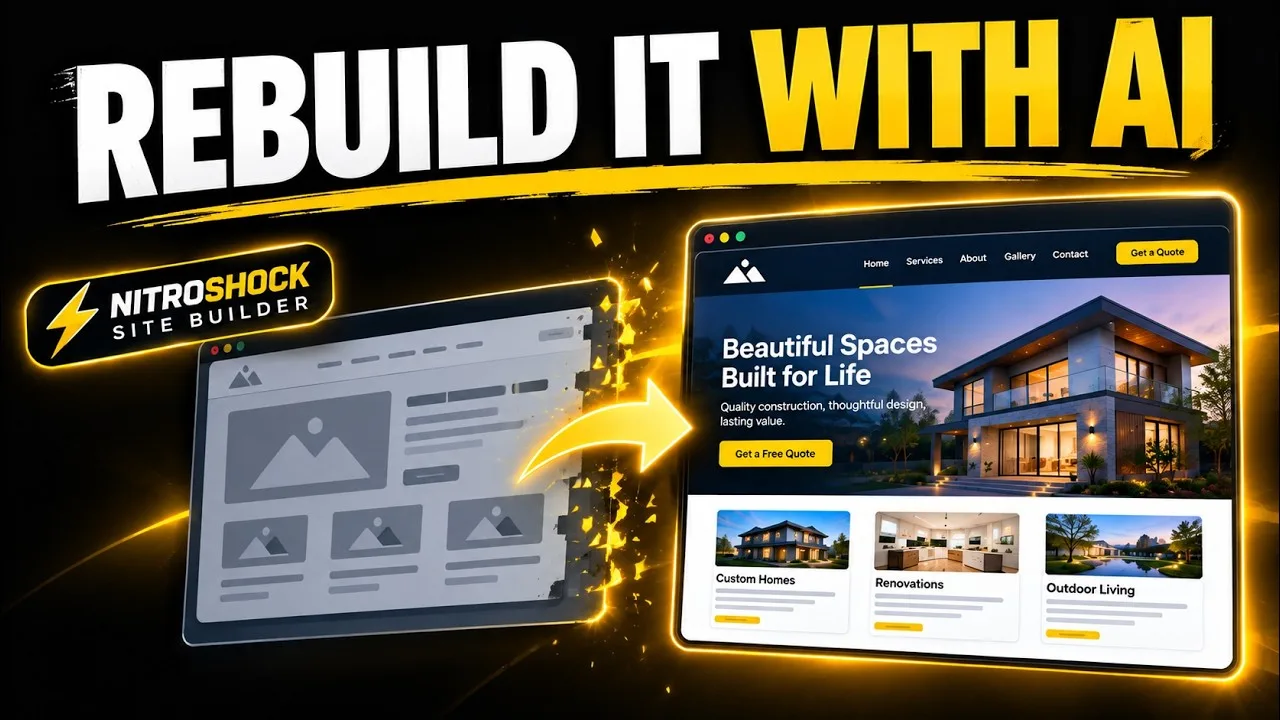
Go to NitroShock → Build My Site, choose Rebuild a site that is online, and paste your current address. NitroShock finds your pages and menu, pre-fills the wizard from your site, and rebuilds each ticked page with an editable header, footer, and navigation. Nothing is deleted: originals stay live until you retire them.
- 0:00Most businesses are not starting from nothing
- 0:29Three ways to build, today: rebuild
- 0:52Connect the API key
- 1:14Point it at the site you want rebuilt
- 1:25It found every page and read the business
- 1:39The interview is already filled in
- 1:56Choose which pages get rebuilt
- 2:15Pick a design direction, colours lifted from the live site
- 2:42Reuse the photos the site already has
- 3:05Keep your header and footer
- 3:23The AI drafts a plan for the whole site
- 3:51Every page has an editable brief
- 4:08One button builds the whole site
- 4:44Pages publish to new addresses; the live site is untouched
- 5:22The build keeps going on the server
- 5:40Back for the last page
- 6:10Menus built, new homepage set
- 6:29The rebuilt site, live
- 6:57Review it like a draft from a designer
- 7:18What comes next
Transcript
0:00Most businesses are not starting from nothing
Most businesses are not starting from nothing. There is already a website, with real pages, real photos, and a design somebody chose. Rebuild mode reads that site, plans a new one from it, and builds every page with AI. In this video we point it at our own painting site and rebuild it, live.
0:29Three ways to build, today: rebuild
Build My Site offers three ways in: a brand new site, an import, and the one we want today, rebuilding a site that is already online. Notice the builder is upfront about what a build changes, and that nothing gets deleted.
0:52Connect the API key
First the wizard asks for your NitroShock API key. That is what powers the AI drafting and the build. This site is already connected, so we leave it blank and move on.
It already knows the site name
1:14Point it at the site you want rebuilt
Now the interesting part. Paste the address of the site you want rebuilt. For us, that is this very site.
1:25It found every page and read the business
A few seconds later it has found all sixteen pages, and it has read the site well enough to pre fill most of the interview that comes next.
1:39The interview is already filled in
What kind of site this is. What it is for. Who it serves. The area it covers. Even the target keywords. Every one of these came from the scan. You just review the answers and correct anything it misread.
1:56Choose which pages get rebuilt
Here is everything it found, ticked and ready: the main pages, the guides, privacy and terms. Untick anything you do not want rebuilt. We are taking all of it.
2:15Pick a design direction, colours lifted from the live site
Pick a direction for the new design
The brand colors were lifted from the live pages too. If the scan put the right colors in the wrong slots, shuffle rotates them around without any retyping.
2:42Reuse the photos the site already has
For images, we tell it to reuse the photos from the original site rather than placeholders. They are real photos of real work, and the new pages should keep them.
The menu comes from the copied site
3:05Keep your header and footer
Last question: the header and footer. Ours are already set up in the builder, so we leave this blank and keep them. The new pages will be built inside the frame the site already has.
3:23The AI drafts a plan for the whole site
Now the AI writes the site brief: one master plan for the whole site, and an individual brief for every page it is about to build. This takes about half a minute.
And there it is. Sixteen pages, each with its own brief, ready to build.
3:51Every page has an editable brief
Before building anything you can open any page and read exactly what the AI plans to do: the sections, the message, the page type that sets its length and tone. Change the brief and the build follows it.
4:08One button builds the whole site
The credit estimate is right there, and one button builds everything: every page, section by section, in the background on the server. Let us start it.
The home page goes first. Each section is generated on its own, so a big page takes about two minutes. Watch the badge on the row.
4:44Pages publish to new addresses; the live site is untouched
There is the first one. The rebuilt home page is already published, on its own new address, without touching the page your visitors see. The runner has already moved on to the next page.
We will let the services page finish on camera, then leave it to work. The progress bar tracks the whole plan.
Two pages built. Fourteen to go.
5:22The build keeps going on the server
The build runs on the server, not in the browser, so we can close the tab and get on with something else. We will come back when the last pages are finishing.
5:40Back for the last page
Back at the console, the list has turned green while we were away. The last page is just finishing.
6:10Menus built, new homepage set
The final step wires the navigation menus and points the site at the new home page. That is the whole rebuild: sixteen pages, planned, written and designed from the site we already had.
6:29The rebuilt site, live
And here it is, live. The header and footer we kept, wrapped around a brand new home page: our own photos, our own services, our own words, rebuilt by AI from the site we already had.
Scrolling down, the sections were planned from what the scan learned: how the estimator works, what we paint, and a clear call to action.
6:57Review it like a draft from a designer
Treat what the AI built the way you would treat a first draft from a designer: read every line, swap any photo that repeats, and fix anything it guessed wrong. Your old pages are still published and untouched until you retire them.
7:18What comes next
That is rebuild mode: scan the site you have, review the plan, and let it build page by page while you do something else. The full write up is in the docs at nitroshock dot ai.
The NitroShock theme and Page Builder plugin active, a NitroShock API key, and the address of the site you want to rebuild.
Most sites that need a redesign don't need a new strategy. The pages are the right pages, the URLs already have links pointing at them, and the business details haven't changed. What has aged is the design, the copy, and the way each page is laid out.
Rebuild mode in the NitroShock Site Builder is made for that case. Paste your current address, tick the pages worth keeping, and NitroShock rebuilds each one with AI as a fresh, editable WordPress page, along with a new navigation menu and an editable header and footer. This tutorial walks through a full rebuild, step by step. For every Site Builder setting, see Build My Site: NitroShock's AI Site Builder.
Why Rebuild Instead of Starting Over
A from-scratch build treats your current site as if it never existed. That's fine for a new business. For an established one, it throws away three things that took time to earn, and rebuild mode keeps all three.
Your URLs and structure. Every page address that other sites link to, that search engines have indexed, and that customers have bookmarked. Each rebuilt page keeps its original slug and its place in the menu hierarchy. Build into a fresh or staging install and every page lands on its original address. Rebuild on the same site and nothing is deleted: the new pages publish on their own addresses next to the originals, which stay live and untouched until you retire them.
What each page is about. Before writing anything, NitroShock reads each original page's title, meta description, headings, and opening copy. The new page is written about the same topic, and its sections are planned from what the original contained. A home page that had a process section, a service list, a trust story, and testimonials comes back with all four, not a generic three-block landing page.
Your business details. NitroShock picks up your phone number, email, postal address, and social profiles from the current home page, and copies your header logo into the Media Library. The rebuilt header and footer show real contact information from the first build instead of placeholder text.
The result is an AI website redesign on WordPress that changes how the site looks and reads while leaving its foundations where they were.
If you are starting a brand-new site, use Build a new site with AI instead. If you already have a finished design as HTML files, see Importing a Site You Already Built.
What Carries Over
When you redesign an existing website with AI, the useful question is what survives the process. Here is the full list.
| From your current site | What the rebuild does with it |
|---|---|
| Pages | Found from your navigation and XML sitemap, up to the number of pages you set. You tick which ones to rebuild. |
| Page URLs | Original slugs kept on a fresh or staging install. On the same site, rebuilt pages publish on new addresses (WordPress adds a suffix such as -2) and the originals stay live. |
| Menus | Header and footer menus rebuilt to match, including dropdowns, or left for you to manage in WordPress |
| Page topic and structure | Title, meta description, headings, and intro read per page and used to plan the new sections |
| Logo | Copied into your Media Library, unless you pick a different one in the wizard |
| Contact details | Phone, email, address, and social links pre-filled from your home page, editable before you build |
| Images | Your choice: reuse the original site's images, or start with placeholders |
| Header and footer | The AI designs new, fully editable ones, or you paste your existing header and footer code to keep them |
What it doesn't do is copy your old copy word for word. Pages are rewritten from what the originals were about, which is the point of a rebuild. The rebuild covers pages, navigation, and the header and footer; blog posts, products, form entries, and user accounts are not part of it, so plan those separately if you are moving to a new install.
What You Need
The NitroShock theme, active on the WordPress install you are building into. It adds the Build My Site screen.
The NitroShock Page Builder plugin, installed and active. Without it the wizard still saves an editable brief, but it cannot build pages.
A NitroShock API key, entered in the wizard. Get or manage your key at nitroshock.ai/dashboard.
You can rebuild on the same site or into a staging or fresh WordPress install. Either way nothing is deleted. On the same site, your visitors keep seeing the original pages while the new ones are built and reviewed; a fresh install puts every page on its original address from the start.
Step 1: Choose Rebuild Mode
In your WordPress admin, go to NitroShock → Build My Site. The Site Builder offers three ways to start. Click Rebuild a site that is online.
The wizard asks for your NitroShock API key first. If the site is already connected, leave it blank and continue.
Step 2: Find Your Pages
Paste your current website address and set Pages to look for. The default is 20; raise it for a larger site. Click Find my pages.
NitroShock reads your site's navigation and XML sitemap and returns a checklist of the pages it found, with the menu structure intact: top-level pages, their dropdown children, and footer links. The same scan reads the site well enough to pre-fill most of the next step. Untick any page you don't want carried across. Every page you leave ticked is built.
Step 3: Answer the Wizard
The remaining questions shape how the new site reads and looks. Most are pre-filled from the scan, including site type, purpose, audience, service area, target keywords, and brand colors, so this step is mostly checking and correcting anything it misread.
- Site name and type. Business, Blog, Portfolio, Shop, or Other.
- Purpose. What the site is for and what a visitor should be able to do, such as book an estimate or request a quote.
- Audience and service area. Who you are writing for, and where, if you are a local business.
- Target keywords. Put your main phrase first; it is targeted on the home page. The rest are matched to the pages they fit best.
- Style and brand colors. Modern, Minimal, Classic, or Bold. Your primary, secondary, and accent colors are lifted from the live site; if they land in the wrong slots, Shuffle colours rotates them without retyping.
- Images. Reuse the original site's images, or start with placeholders.
- Contact details, logo, and social links. Pre-filled from your current site. Correct anything that is out of date.
- Navigation menu. Build it from the copied site, or manage it yourself in WordPress.
- Header and footer. Paste your existing code to keep them, or skip to let the AI design new ones. See Keeping Your Own Header & Footer.
Step 4: Review the Site Brief
Finishing the wizard creates a Site Brief and a draft page for each selected page, then opens the build console. The brief is plain text, not a settings maze. From here you can:
- Edit the master brief for anything site-wide
- Edit each page brief and set its page type, which guides how that page is built
- Add instructions for the AI on any page, the header, or the footer. Something like "lead with a booking call-to-action" is enough.
This is the best place to catch a page that discovery read poorly. If a page brief doesn't describe what the original page was about, correct it now. A good brief is cheaper to fix than a finished page.
Step 5: Build
Click Build to generate everything, or build a single page, the header, or the footer on its own. Builds run in the background with live progress, so you can leave the screen, and you can Stop a run at any time.
A full rebuild produces:
- An AI-designed header and footer you can edit, unless you pasted your own
- Header and footer menus matching your original structure, including dropdowns
- Your home page set as the site's front page
- Every selected page, published with an SEO title and description
Step 6: Review and Refine
Pages. Every page the builder creates is a standard WordPress page. Edit it in the block editor or the page builder like any other page. If a page misses the mark, edit its brief, add an instruction, and rebuild just that page.
Header and footer. The AI-built header and footer are fully editable. Open each in the page builder for visual editing, or edit the code directly under NitroShock → Header & Footer.
Images. Replace any placeholders with your own from the Media Library.
Step 7: Go Live
Before switching over:
- Click through every page and compare it with the original
- Submit each form and confirm it arrives
- Check the header and footer menus against your original navigation
- Confirm the contact details in the header and footer
- Replace any remaining placeholder images
If you built into a fresh or staging install, page URLs are unchanged and no redirects are needed. If you rebuilt on the same site, retire each original page once its replacement is ready, then give the new page the original's slug so existing links keep working.
Keeping Your Own Header & Footer
The AI-built header and footer are fully editable, so most sites never need this. Some sites have a header and footer worth keeping as they are: a booking widget, a custom mega menu, or branding the business isn't ready to change. Paste their code in the wizard's last step and the new pages are built inside them.
Pasting chrome switches the site to imported mode, where your stylesheet is the only styling and the AI regenerate buttons for the header and footer are turned off so they can't overwrite your code. Edit it under NitroShock → Header & Footer, or rebuild from Build My Site to return to framework mode, where NitroShock's design system styles the site from your brand colors.
Troubleshooting
Discovery found fewer pages than expected. Raise Pages to look for and run Find my pages again. Pages that appear in neither your menu nor your sitemap are not found; add them to your sitemap first.
A page was rebuilt about the wrong topic. Sites that render their content with JavaScript can give discovery less to read. Correct that page's brief and rebuild the page.
AI buttons are off for the header and footer. The site is in imported mode. Edit the code directly, or rebuild from Build My Site to return to framework mode.
A build seems stuck. Builds run on WordPress cron. If your host restricts it, reload the build console to refresh status, or Stop and start the build again.
FAQ
Does my current site have to be on WordPress?
The site you build into does. The site you rebuild from can be on any platform, since it is read through its public pages, navigation, and sitemap. Sites that render their content with JavaScript are hit or miss: some rebuild cleanly, others give discovery less to work with, so check the page list and briefs before you build.
How many pages can I rebuild?
You set the number in Pages to look for before scanning. The default is 20, and you can raise it for a larger site.
Will my page URLs change?
Not on a fresh or staging install: every page keeps its original slug and menu position. On the same site, rebuilt pages publish on new addresses next to the originals, which stay live until you retire them. Then give each new page its original slug.
Is my old copy reused?
Not word for word. Each page is rewritten from what the original was about, using its title, headings, and intro as the guide.
Are the header and footer editable?
Yes. Edit them visually in the page builder or as code under NitroShock → Header & Footer.
What if I don't like a page?
Edit that page's brief, add an instruction for the AI, and rebuild just that page, or edit the published page directly in WordPress.
Does AI for WordPress here cover design as well as content?
Yes. A rebuild produces the header, footer, navigation, and page layouts along with the copy, unless you keep your own header and footer.
What should I compare when choosing an AI WordPress website builder for an existing site?
Whether it outputs normal WordPress pages you can edit anywhere, keeps your URLs, lets you see and edit what the AI was told, rebuilds one page without redoing the site, and gives you an editable header and footer. Rebuild mode does all five.