
Enabling the Page Builder on a Page
Open the page or post in WordPress, tick Build this page (or post) with NitroShock in the NitroShock Page Builder box in the sidebar, and confirm; it saves and reloads, and Edit with NitroShock opens the full-screen builder. On posts the box is for editors and administrators. Untick it and click Update to turn it off.
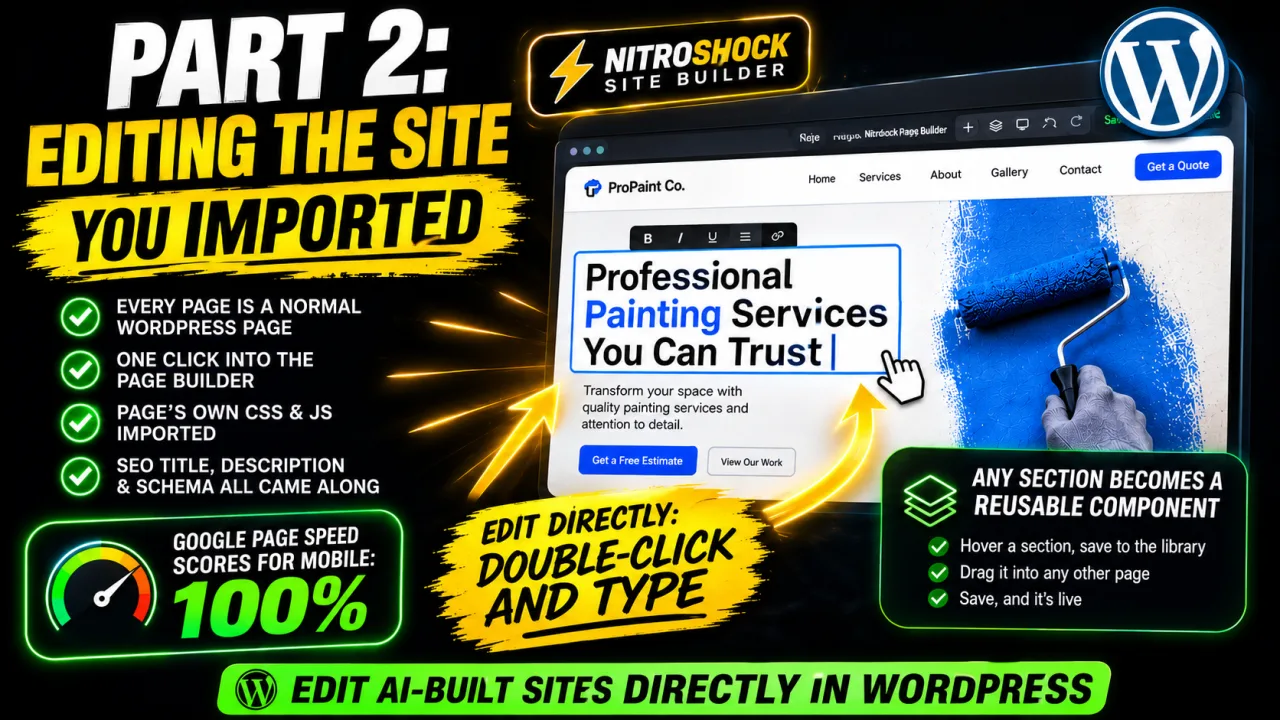
- 0:00What the import series covers
- 0:22Every imported page is a normal WordPress page
- 1:06What came across: CSS, JavaScript, SEO title, description, schema
- 2:16Edit text in place: double-click and type
- 2:35Save any section to the component library
- 2:58The edit live on the site, and the section in the library
- 3:55Reuse the section on another page
- 4:52A real Lighthouse run: why these sites are fast
- 5:32What comes next
Transcript
0:00What the import series covers
In the last video we took a site Claude built and imported it into WordPress with NitroShock's Site Builder. This time we open those imported pages in the Page Builder: basic edits, reusable sections, and why these sites score so well on speed.
0:22Every imported page is a normal WordPress page
Here are the pages the import created. They are normal WordPress pages, so everything starts from the familiar Pages list.
Opening one shows a launch panel: this page's content is managed by the NitroShock Page Builder. One click takes you in.
And here is the imported home page, sitting on the visual canvas exactly as it renders on the site.
1:06What came across: CSS, JavaScript, SEO title, description, schema
Before we change anything, look at what came across with it. Nothing was flattened into one blob of markup. Every part of the page landed in its own editable field.
The CSS tab holds this page's own stylesheet, exactly what the zip carried for it.
Same for its JavaScript. Page specific code stays with the page.
And under Meta: the SEO title, the meta description, and the page's structured data. Notice the schema is live, and ShockMeta folds it into the page's structured data graph so nothing is duplicated.
This is what importing a site should mean: the design, the code, and the SEO all arrive intact, and all of it stays yours to edit.
2:16Edit text in place: double-click and type
Back on the canvas, editing is as direct as it gets. Double click any text and it becomes editable in place.
Save, and the page is updated.
2:35Save any section to the component library
Still on the same page, here is the part that turns your AI built design into a kit. Any section of any page can be saved to the component library and reused.
Take this call to action band. Hover it, and hit save to library.
2:58The edit live on the site, and the section in the library
Two things to check outside the editor. First the edit itself, live on the site. No shortcodes, no lock in, just the page you imported with your headline on it.
And second, the section you saved. It is in the component library under captured sections, alongside everything else you have saved.
The preview can even render with your imported site's own stylesheet, so what you see here is what it looks like on the site.
3:55Reuse the section on another page
Reusing it takes seconds. Open any other page in the builder. The saved section is waiting in the sidebar under captured sections.
Drag it onto the canvas, drop it where it belongs, and save.
And there is the same section, live on the services page, styles and all. Design once, reuse everywhere.
4:52A real Lighthouse run: why these sites are fast
One more thing the architecture buys you. This is a real Lighthouse run against the imported site on mobile settings: one hundred for performance.
The reason is the same structure you just saw in the editor. One small base stylesheet shared by every page, and each page carrying only its own CSS and JavaScript. The importer also preloads your hero image, sizes every image to stop layout shift, and self hosts your fonts. No framework bloat anywhere.
5:32What comes next
So if you build sites with AI, this is the editing layer to put behind them: import the design, edit it directly, and turn its sections into a reusable library, all on WordPress. Next up, we go deeper into the Page Builder's tools, feature by feature. Guides at nitroshock.ai/docs. Thanks for watching.
You turn the NitroShock Page Builder on one page or post at a time. Whatever you switch on is edited in the full-screen builder; everything else keeps the normal WordPress editor.
Turning It On for a Page
- Go to Pages and open the page in the WordPress editor.
- Find the NitroShock Page Builder box in the right-hand sidebar.
- Tick Build this page with NitroShock and confirm Enable NitroShock Editor? The page saves and reloads on its own.
After the reload, the box reads Active with an Open builder button, and the main editing area is replaced by a panel saying the content is built with the NitroShock Page Builder, with an Edit with NitroShock button. The block editor is switched off for this page. The edit screen still saves the title and page settings, such as the slug, parent and featured image.
Can't see the box? It may be hidden. In the block editor, open the Options menu (the three dots at the top right), choose Preferences and turn the NitroShock Page Builder panel back on. In the classic editor, use Screen Options at the top of the screen.
Posts. Open the post under Posts instead; the box reads Build this post with NitroShock and the steps are the same. On posts the box is shown to editors and administrators only. An author who opens a post an editor built sees a notice that the content is built with NitroShock: the title and settings still save, and the content stays as it is.
Opening the Builder
Click Edit with NitroShock (or Open builder) to open the full-screen builder. From there you can drop in elements and saved components, edit text on the canvas, switch to the HTML, CSS and JS tabs, fill in the page's SEO details on the Meta tab, and use the AI writing modes and the AI Chat Assistant. Click Save in the top bar to save the page. See the Page Builder Overview for a tour of the builder.
The video on this page shows the same steps on pages brought in with the Site Builder importer: opening a page from the launch panel, editing text in place and saving a section as a reusable component.
Per-Page CSS and JavaScript
The builder's CSS and JS tabs hold code for this page only:
- The page's CSS is added to the page head after your site's and theme's stylesheets, so a rule of equal strength in the page CSS wins.
- The page's JavaScript is added at the end of the page.
Neither loads on any other page, which makes these tabs the place for one-off changes without touching your theme. Because the code runs on the live site, only administrators see these tabs by default. An administrator can open them to editors with Allow the Editor role to use code tools under Credits & Settings → Permissions.
Your Theme
A NitroShock page appears inside your theme's normal page template, so your theme's header, footer and sidebar stay in place. A NitroShock post appears in your theme's post template, so the date, author, categories and comments stay too.
Post titles on the NitroShock theme. The theme hides a builder post's title by default, as it does on pages, because the builder content provides the main heading. To show it, tick Show the theme title (H1) above the content in the Post title box on the post.
Blog page and archives on other themes. When a theme shows a builder post's full content in a list, the post keeps its component styles there.
The one exception is NitroShock's own header and footer. Under NitroShock → Header, Footer & CSS, the setting Render the built header & footer on NitroShock pages regardless of the active theme makes NitroShock pages use the header and footer built there instead of your theme's.
Turning It Off
- Open the page in the WordPress editor.
- Untick Build this page with NitroShock and accept the warning.
- Click Update.
The page keeps its content: the HTML the builder saved stays in the page and opens in the WordPress editor as classic content. The page's own CSS and JavaScript stay saved too and keep loading on that page. If you do not want them, empty the CSS and JS tabs in the builder before you turn it off.
FAQ
Does turning it on change the rest of my site?
No. Only the pages and posts you tick are affected, and they still use your theme's header and footer unless you choose NitroShock's.
Can I use it on posts?
Yes. Open the post, tick Build this post with NitroShock and it works as it does on a page. On posts the builder is available to editors and administrators.
Will I lose my content if I turn it off?
No. The content stays in the page, and you can tick the box again later to go back to the builder.